
Subtitles are not a nice-to-have for a lot of viewers: a film in English with Dutch subs, a Spanish series with English subs, or just reading along while the kids are asleep. Every IPTV app does it differently though. This guide shows per app where to switch subtitles on, how to pick your language, how to fix the timing, and when nothing can be done – because sometimes the subs are simply baked into the picture.
The key that applies to every app: subtitles must be in the stream. An app can only show what the channel or film provides. No track in the list = no subs, however well you search.
First: three kinds of subtitles
- Track subs (most common): separate text tracks inside the stream, in several languages. These you can switch on, off and between in the app.
- Teletext subs: older broadcasts carry subtitles as a teletext page. Some apps (like Sparkle TV) can read those; others cannot.
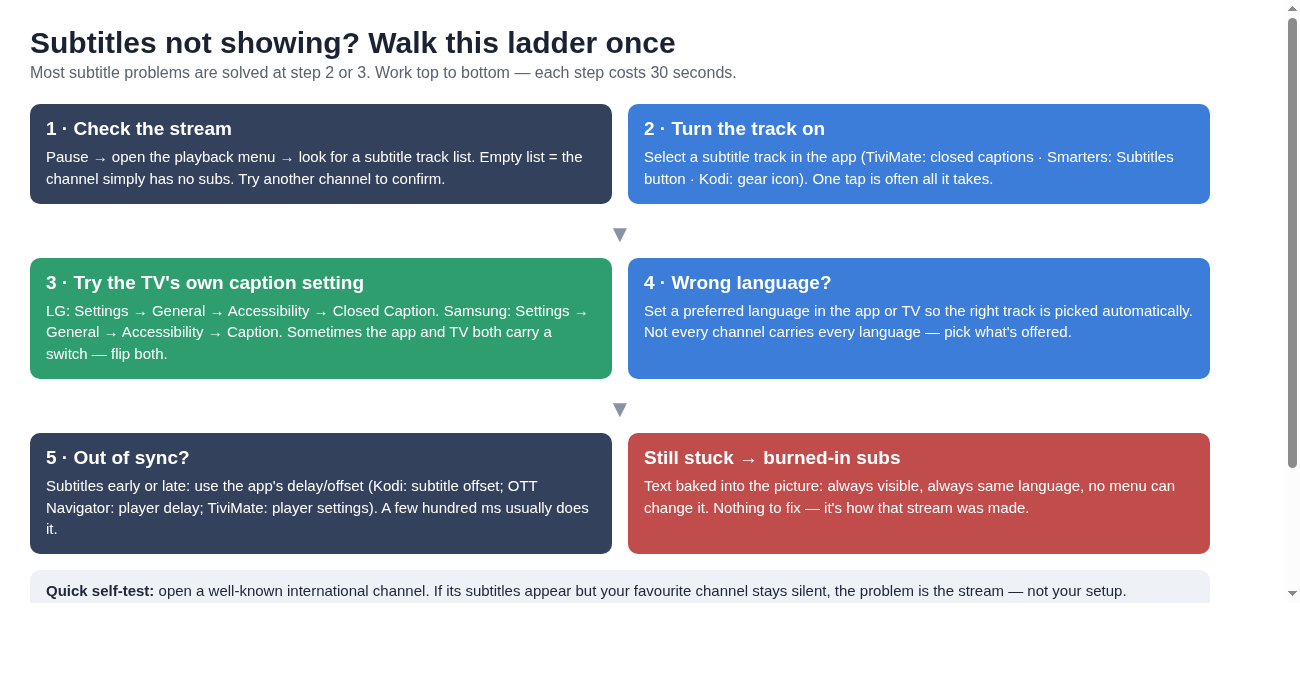
- Burned-in subs: the text is part of the video image itself. Everyone sees the same thing: always visible, one fixed language, no menu removes or delays them. You recognise them when subs stay on screen while the track list is empty.
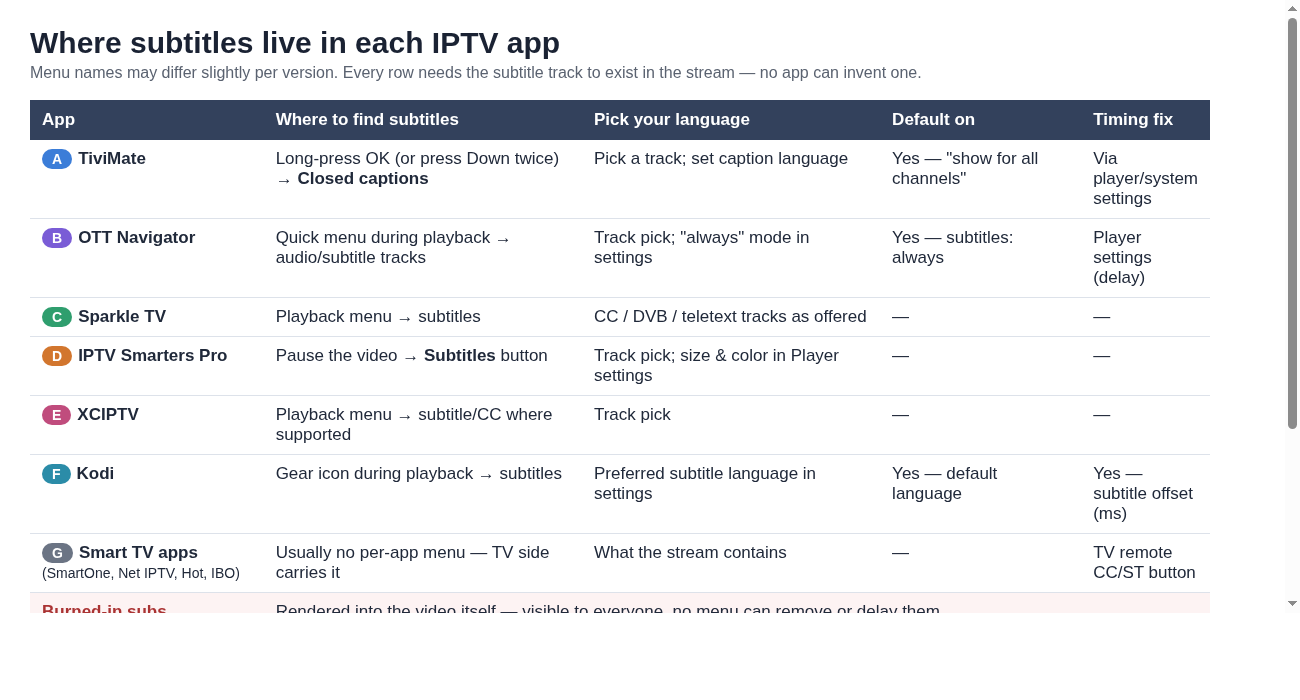
The matrix: where subtitles live per app
TiviMate
TiviMate calls subtitles “Closed captions”. While watching: long-press OK (or press Down twice) – playback menu – Closed captions – pick a track. Want subs on by default on every channel? In the same menu set Show Closed Captions for all channels to on and pick your language. The look (text size, colour) is handled by the caption settings of your device.
OTT Navigator
During playback open the quick menu (OK or the three dots) – audio/subtitle tracks. In the settings you can set subtitles to always; it will then auto-pick the first track even if it does not match the app language. Handy for fixed Dutch subs on English content. Out of sync? Adjust the delay in the player settings. Not working on hardware codecs? Switch to software codecs in the player menu – many streams show their subtitle tracks then.
Sparkle TV
Sparkle TV supports the usual subtitle formats (CC, DVB subtitling and teletext) – less common and exactly right for older channels. During playback open the playback menu – subtitles – pick a track. A preferred language can be set in the app settings.
IPTV Smarters Pro
Pause the video – Subtitles button at the bottom – pick a track. Text size and colour sit under Settings – Player. The button does nothing on a particular film? That track most likely has no subs, or the app plays it through an external player – set VLC as external player and load an .srt there.
XCIPTV
Same rhythm: during playback open the playback menu – subtitles/CC (where the stream offers it) – pick a track. For VOD without subs you can use an external player that can load .srt files.
Kodi (PVR IPTV Simple Client)
Kodi has the most complete subtitle toolbox. Default: Settings – Player – Subtitles – preferred language. During playback: gear icon – Subtitles – pick a track or use the built-in downloader (opensubtitles). Out of sync? Set the subtitle offset in milliseconds there – exactly where you need it.
Smart TV apps: SmartOne, Net IPTV, Hot IPTV, IBO Player
These apps on Tizen (Samsung) and webOS (LG) often hand subtitles to the TV itself. Turn on the TV captions: on LG Settings – General – Accessibility – Closed Caption; on Samsung Settings – General – Accessibility – Caption. The CC/ST button on the remote sometimes toggles it directly. Does it not work there? Then the track is in the stream but the app cannot show it on that platform – no setting fixes that.
GSE Smart IPTV, Implayer, STB Emu
GSE has subtitle options in the player settings; Implayer follows the Android standard (pick a track via the playback menu). STB Emu mimics a MAG box and shows subs the way that box would: often via the TV caption setting, sometimes only track subs on VOD.
Choosing a language that is not in there
If the track list only offers English and you want Dutch (or the other way around), no menu adds a language. The provider decides which languages the stream carries. Two options: try another channel with the same film (another source may carry the language), or check whether the film appears elsewhere in the guide with different languages. For VOD you can sometimes load your own .srt file in an external player with the language you want.
Earlier or later: fixing the timing
Subtitles arriving half a second early or late: Kodi has the subtitle offset (in ms, adjustable live). OTT Navigator has a delay in the player settings. TiviMate covers it via the system caption settings. Most other apps have no timing button – then it is the stream itself or nothing.
Stuck?
Walk the ladder above top to bottom – most problems resolve at step 2 or 3. Still stuck? Ask via our contact page – we help fast and free. Or test Pro IPTV free for 24 hours and see how the subtitles come in on your own devices.
More reading
- Set up TiviMate: the complete guide
- Set up OTT Navigator
- Set up SmartOne IPTV on your Smart TV
- Set up IBO Player on Samsung TV
- IPTV on LG Smart TV