
Top 10 Kodi add-ons in 2026 (legal, with install guide)
Kodi is a free media player that you turn into a complete streaming hub with add-ons. In this guide we list the 10 best legal Kodi add-ons of 2026 — with, for each add-on, where it comes from and how to install it. The general install method that works for almost any add-on is at the bottom.

How does a Kodi add-on work?
An add-on is an extension that adds content or functionality to Kodi. You install them via a repository (a source of add-ons). Official add-ons come from the Kodi Add-on repository that ships with Kodi. Some third-party add-ons come from their own well-known repository that you add first.
Important: use only legal add-ons that rely on your own subscriptions or free official streams. Kodi itself is fully legal and free.
1. PVR IPTV Simple Client — your IPTV subscription in Kodi
The best add-on if you watch IPTV: with PVR IPTV Simple Client you load your own M3U playlist and EPG into Kodi. You’ll see all your channels and the programme guide right in Kodi’s TV section. Want to use this with Pro IPTV? Ask your provider for your M3U and XMLTV link.
Source: official Kodi repository (PVR clients). Cost: free (uses your own subscription).
2. YouTube
The official YouTube add-on brings all videos, channels and playlists to Kodi. Sign in with your Google account and your subscriptions and playlists sync automatically. Supports 4K where your device allows.
Source: official Kodi repository. Cost: free.
3. Pluto TV
Pluto TV is an official add-on with hundreds of free, legal TV channels and movies — no account needed. Great for background TV or free films and series.
Source: official Kodi repository. Cost: free.
4. BBC iPlayer
With the BBC iPlayer add-on you watch the full BBC catalogue on demand: series, documentaries, films and live channels. Free with a (free) BBC account, intended for the UK.
Source: official Kodi repository. Cost: free.
5. Jellyfin
Run your own media server? With the Jellyfin add-on you link your Jellyfin library to Kodi. Movies, series and music you manage yourself, neatly in the Kodi interface.
Source: official Jellyfin Kodi repository. Cost: free (own server required).
6. Plex
The Plex add-on (PlexKodiConnect or the official Plex add-on) links your Plex library to Kodi. You watch your own Plex content with Kodi’s look and feel.
Source: official Plex / PlexKodiConnect repository. Cost: free (Plex account required).
7. Samsung TV Plus / PBS
Free, official live channels from the SlyGuy repository: Samsung TV Plus and PBS bring dozens of legal live streams straight into Kodi — no subscription.
Source: SlyGuy repository (well-known, legal third party). Cost: free.
8. Netflix
The Netflix add-on (from the CastagnaIT repository) integrates your own Netflix subscription into Kodi. You get the full Netflix library, better subtitle options and one unified viewing experience — without switching apps.
Source: CastagnaIT repository (well-known, legal third party). Cost: your own Netflix subscription required.
9. Disney+
With the Disney+ add-on (SlyGuy repository) you watch your own Disney+ subscription in Kodi: films, series, originals and more. Requires a paid Disney+ subscription and a recent Kodi version with Inputstream Adaptive.
Source: SlyGuy repository (well-known, legal third party). Cost: your own Disney+ subscription required.
10. VLC / UPnP
The UPnP/DLNA add-on lets Kodi stream from any DLNA device on your network — NAS, PC or another media player. A simple, fully official way to reach the files you already own.
Source: official Kodi repository. Cost: free.
How to install an add-on in Kodi (general)
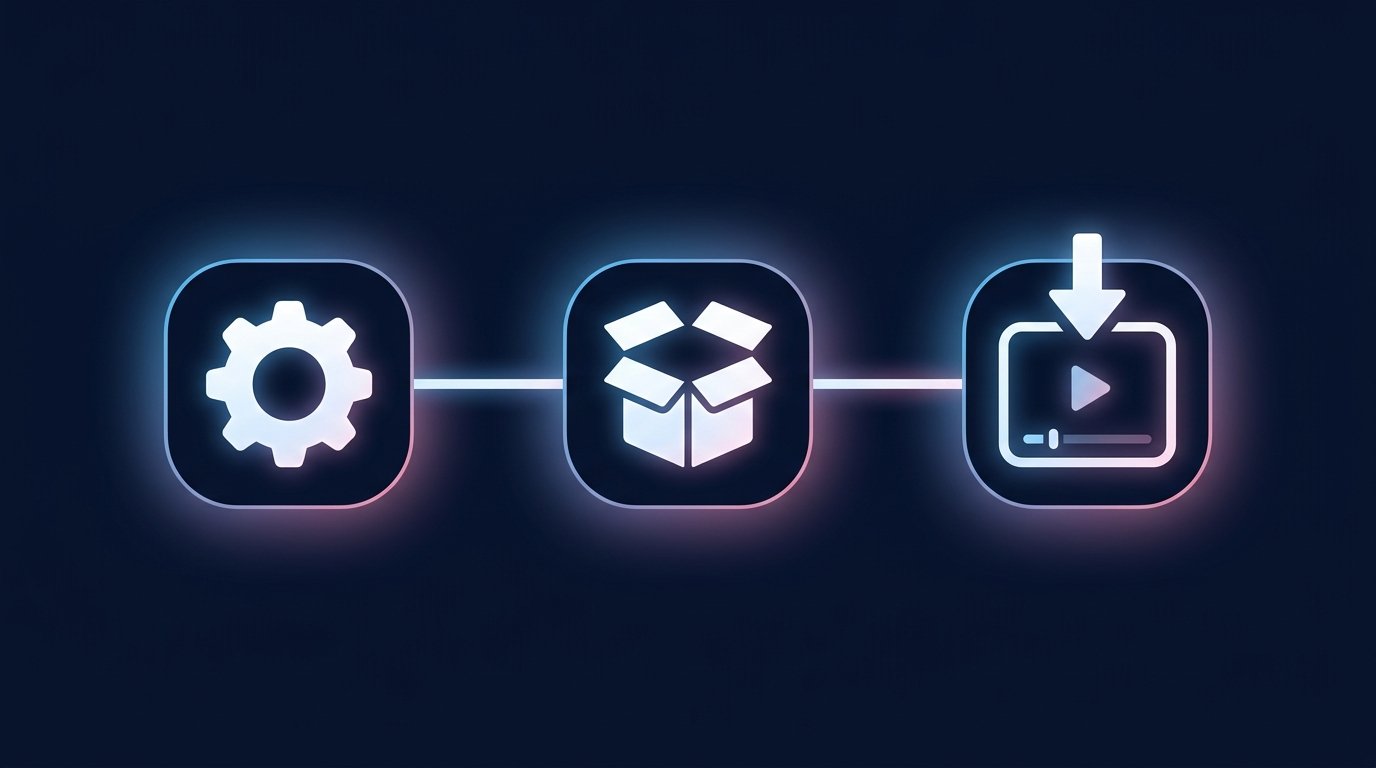
- Open Kodi and go to Settings (gear) → Add-ons.
- Choose Install from repository.
- Select the repository: Kodi Add-on repository for official add-ons, or a custom repository for third parties.
- Pick the category (e.g. Video add-ons or PVR clients) and select the add-on.
- Click Install, then Enable.
For an add-on from a custom repository, first add the source via Settings → File manager → Add source, then install the repository ZIP via Add-ons → Install from zip file.
Adding a third-party add-on (add source)
- Settings → File manager → Add source.
- Enter the repository URL and give the source a name.
- Go back to Add-ons → Install from zip file → pick the repository ZIP.
- The repository then appears under Install from repository.
Frequently asked questions about Kodi add-ons
Are Kodi add-ons legal?
Kodi itself is 100% legal open-source software. The add-ons in this list are legal: they come from the official repository or from well-known parties and use your own subscription or free official streams.
Does Kodi work on my device?
Kodi runs on Windows, Mac, Linux, Android, Android TV/Google TV, Amazon Firestick and more. See our app picker to find what fits your TV.
What is the best Kodi add-on for IPTV?
PVR IPTV Simple Client: load your own M3U playlist and EPG into Kodi. Ask your IPTV provider for your M3U and XMLTV link.
Stuck or something not working? Ask via our contact page — we’ll help you quickly and free of charge. Or try Pro IPTV free for 24 hours.
Want more? Set up Kodi for IPTV (PVR IPTV Simple Client) · the best IPTV app per device · the complete IPTV install guide